(WinXP and earlier Windows versions skip down to here.)
Control Sound Output (Win7/Vista)
Right-click on the speaker icon on your taskbar tray and select Playback devices.
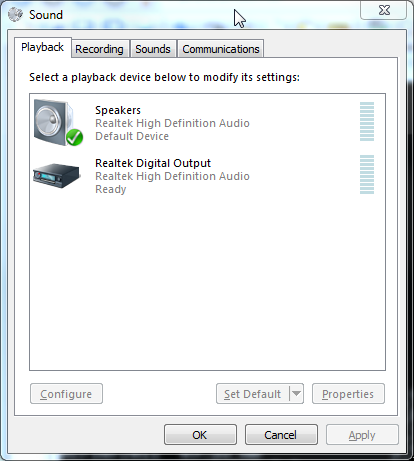
Select the output device you wish to control, usually the default device which has a check-mark.
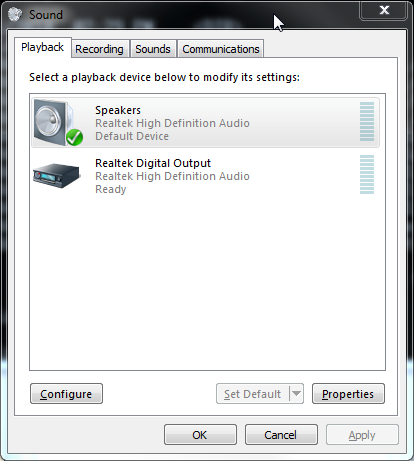
Click on the Properties button and select the Levels tab.
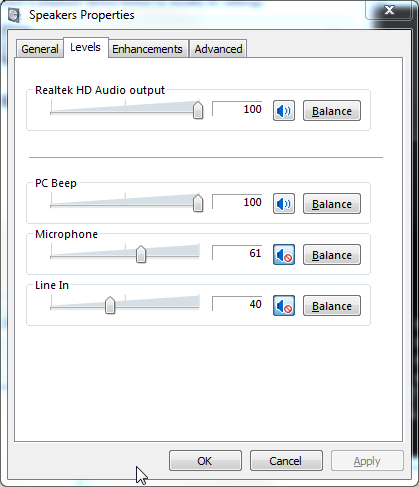
You can adjust the sound level with the top slider.
If you wish for a sound input device, such as Microphone, to play through your speakers, then adjust the level slider for that input and clickthe un-mute button near the slider.
Control Recording (Win7/Vista)
Right-click on the speaker icon on your taskbar tray and select Recording devices
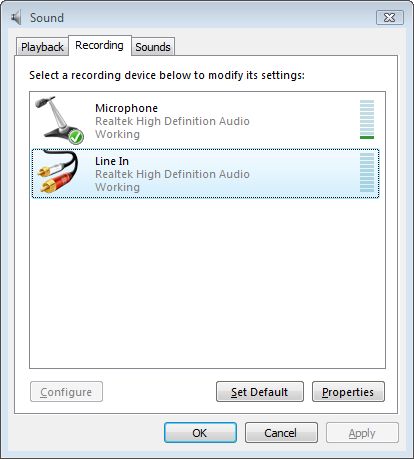
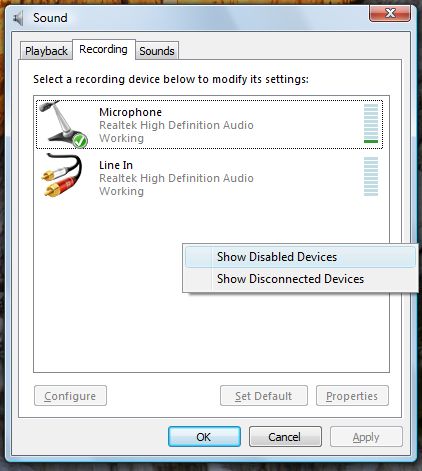
You might find that you do not have a recording input such as “Stereo Mix” as in WinXP. Here is the trick: It may be there, just hidden.Right-click on the window in the blank space below the last device listed, and select and select “Show Disabled Devices“.
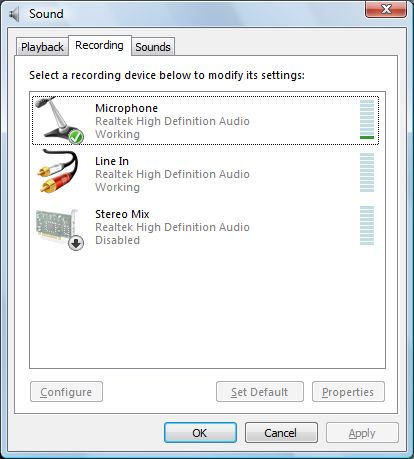
Now another device appears on the list, but it is shown as “Disabled”.
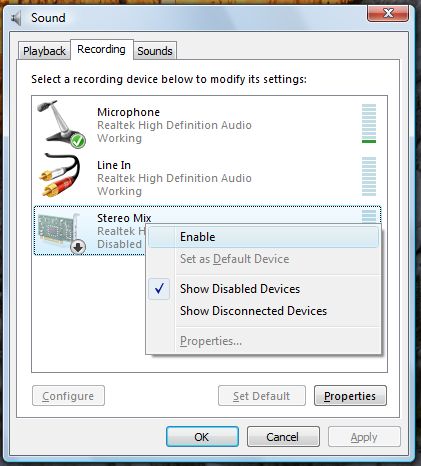
Right-click on that device, often known as “Stereo Mix“, and select”Enable“.
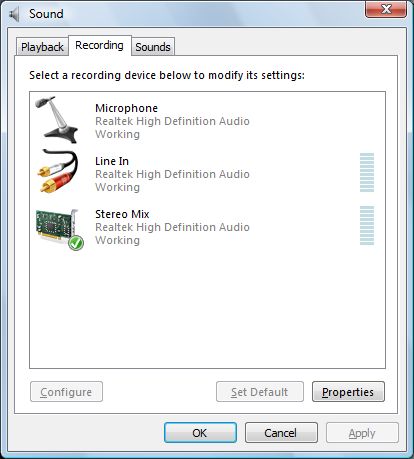
Right-click on whichever device you wish to record from and select “Set as Default Device“. In this example we will choose “Stereo Mix”, but many users will select “Microphone” or perhaps “Line In” for their application.
A little check-mark will appear next to the current selected recording input.
Click on Properties and select the Levels tab. We will keep this window up, to adjust the recording level later.
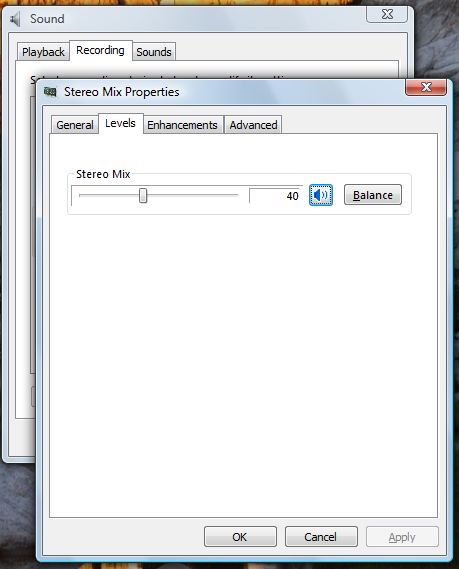
This input records anything coming out your computer speakers, which could be a mixture of MIDI.
Adjust the level slider on “Level” tab so you don’t get clipping.
Related article: Record Audio from Any Audible Output: Vista Version
Control Sound Output (WinXP)
Double-click on the speaker icon in your taskbar tray, at the lower right hand corner of the screen. (Several of our programs offer another way toactiviate the mixer play control, by clicking menu Options->Mixer Play Control or similar menu item.)
If you do not have a speaker icon in your taskbar tray, check Start button->Settings->Control Panel->Multimedia->Audio->Show volume control on the taskbar.
Double-clicking the taskbar speaker icon causes the Play Control window to appear.
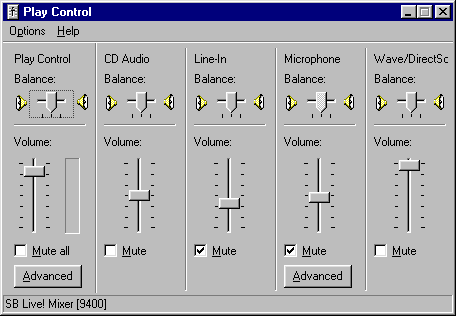
You can control which sound card speaker-input controls appear in the Play Control window. In Play Control menu Options->Properties,
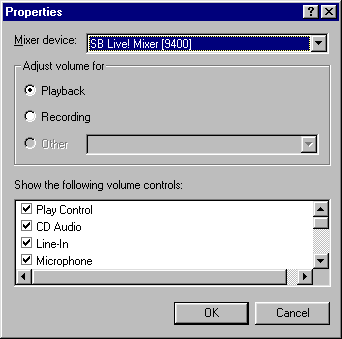
check the controls you wish to appear, and click OK. Hint: We keep nearly every control checked.
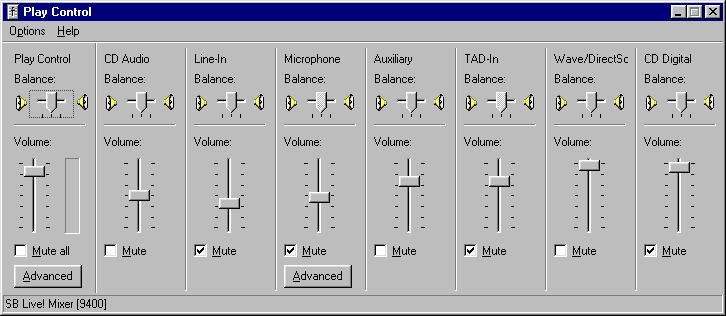
For each speaker-input shown, you will see a Volume slider and Mute checkbox, and perhaps other controls for balance, etc. The Volume slider controls loudness for that particular speaker input, and Mute can turn it off completely. For instance, suppose you want your microphone input to sound at your speaker, so you can annoy the fellow in the next office. Turn the Microphone Volume slider to some high amount, and unMute the Microphone checkbox. Try it now! (However, for most applications, we prefer the Microphone speaker-output to be muted, so mute it now.)
Suppose you connected a radio-scanner to your sound card Line-In for recording with RecAll-PRO, but you did not want the radio to sound at your speakers. In Play Control, check the Mute checkbox for Line-In.
Control Recording (WinXP)
Always remember that the Play Control window only deals with speaker output,and does not control recording! It is a natural mistake to go into Play Control and uncheck the Microphone Mute control and turn up the Microphone Volume, and then wonder why your nifty Sagebrush program is not recording from the Microphone. It doesn’t work that way!
Bring up the Play Control window as above. In menu Options->Properties,
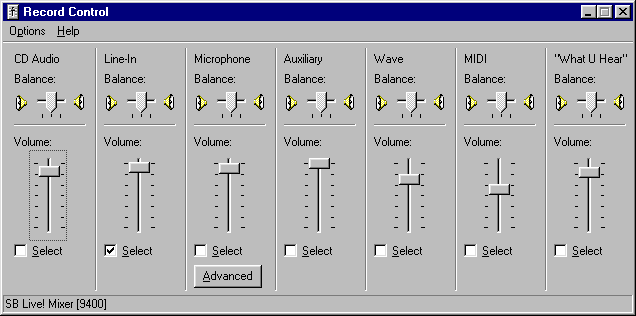
check Recording and check all the controls, and click OK.The Play Control window is replaced by Record Control. (Several of our programs offer another way to activate the mixer play control, by clicking menu Options->Mixer Record Control or similar menu item.)
For each recording-input, you will notice a Select checkbox and Volume slider. If you want to record from Microphone, check the Microphone Select checkbox. If you want to record from Line-In, check the Line-In Select checkbox. If the recording volume is too low, turn up the appropriate Volume slider.
Sometimes you may wish to record streaming audio. Many modern sound cards present a recording input called Wave that may work. Several sound cards also offer a recording input called “What U Hear” or a similar name, that records anything that can be heard over the computer speakers.
Related article: Record Audio from Any Audible Output: XP Version